Key Highlights
- Add vehicles in seconds by entering the 17-digit VIN
- Auto-populate make, model, year, doors, and seat count
- Reduce data entry errors with verified vehicle specifications
- Completely redesigned mobile and desktop experience
We're thrilled to introduce VIN Decoding in Rentbee's car rental software—a feature that transforms how you add vehicles to your fleet. Enter a VIN, and let our system do the heavy lifting.
The Challenge of Manual Vehicle Entry
Adding a new vehicle to your fleet has always involved tedious data entry. Staff had to look up specifications, manually type make and model names, and double-check year information. This process was not only time-consuming but prone to typos and inconsistencies.
For businesses managing growing fleets, these small inefficiencies add up quickly—and data errors can cause problems down the line with reporting, insurance, and customer communications.
How VIN Decoding Works
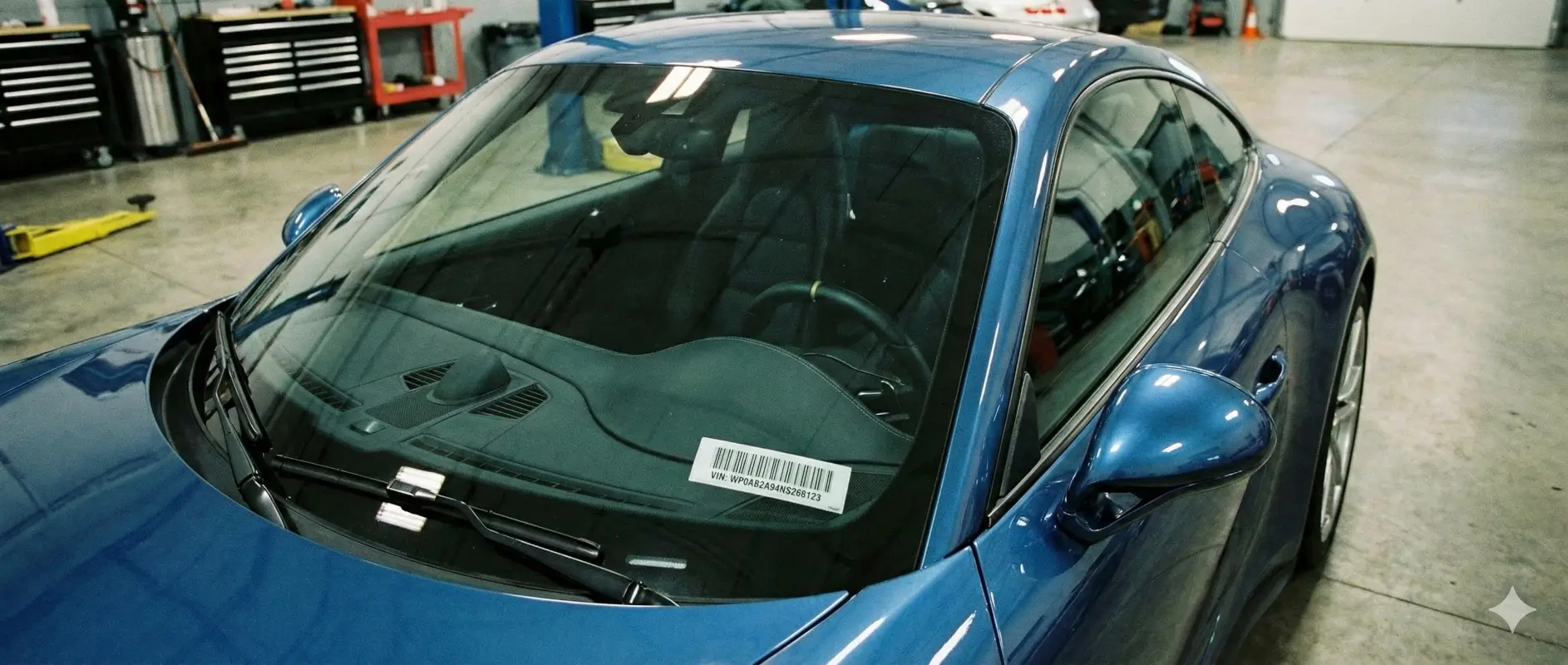
Every vehicle has a unique 17-character Vehicle Identification Number (VIN) that contains encoded information about its manufacturer, specifications, and production details. Our new feature taps into this data to streamline your workflow.
The Process is Simple
- Enter the VIN — Type or scan the 17-character VIN
- Instant Decode — Our system retrieves verified vehicle data
- Review & Confirm — Check the auto-populated details
- Add Extra Details — Enter license number, color, and category
- Save — Your vehicle is ready to rent
The entire process takes just seconds instead of minutes.
What Gets Auto-Populated
When you enter a valid VIN, Rentbee automatically fills in:
| Field | Description |
|---|---|
| Make | Vehicle manufacturer (Toyota, Ford, BMW, etc.) |
| Model | Specific model name |
| Year | Manufacturing year |
| Doors | Number of doors |
| Seats | Passenger capacity |
| Serial Number | The VIN itself for your records |
This verified data comes directly from manufacturer databases, eliminating guesswork and typos.
Flexible Vehicle Numbering
We've also added three convenient options for assigning vehicle numbers:
- Auto-Increment — Let Rentbee assign the next sequential number automatically
- Match License Plate — Use the license plate number as the vehicle identifier
- Custom — Enter any identifier that fits your naming convention
Choose what works best for your business workflow.
A Completely Redesigned Experience
Along with VIN decoding, we've rebuilt the entire vehicle creation flow from the ground up:
On Desktop and Tablet
A streamlined dialog guides you through VIN entry and confirmation before opening the full vehicle editor with all fields pre-filled.
On Mobile
A new step-by-step wizard breaks the process into clear stages—perfect for adding vehicles on the lot or at auctions.
Both experiences are designed to minimize taps and reduce friction.
Benefits for Your Business
Save Time on Every Vehicle
What previously required looking up specs and typing multiple fields now happens in one step. Multiply this across your entire fleet, and the time savings are substantial.
Eliminate Data Entry Errors
Typos in make or model names can cause problems with insurance documentation, customer communications, and internal reporting. VIN decoding ensures accuracy from the start.
Faster Fleet Onboarding
Whether you're adding a single vehicle or onboarding an entire fleet acquisition, VIN decoding dramatically speeds up the process.
Consistent Data Quality
Every vehicle in your system will have standardized, verified information—making reports more reliable and searches more accurate.
Skip When You Need To
Don't have the VIN handy? No problem. The skip option lets you bypass VIN lookup and enter vehicle details manually, just like before. You can always update the VIN later.
Getting Started
VIN decoding is available now for all Rentbee users. To try it:
- Go to your Assets section
- Click Add Vehicle
- Enter the 17-character VIN when prompted
- Watch your vehicle details populate automatically
Ready to simplify your fleet management? Request a demo and experience VIN decoding for yourself.
Questions about adding vehicles or managing your fleet? Contact our support team.